Set-up guide
Set up Orca.
From the welcome email to your first brief. Your database, Claude, the meeting notetaker and your booking page are already set up for you. This page covers the part that is yours: install the app, enter your key, sign into your mailbox and tell Orca who you are.
Before you start
- Your welcome email. It has your licence key, which looks like a long string of letters and numbers in a box. One key works for Orca, Orca Mobile, Orca Time and Orca Snap.
- A Mac or a Windows PC. macOS 10.15 or later on Apple silicon or Intel, or Windows 10 (21H2 or later) or Windows 11, with 4 GB of memory.
- Your work mailbox sign-in. Microsoft 365 or Google. If your organisation controls which apps can connect, read the Microsoft 365 section first.
Downloads
Every app here comes with your Orca licence. Each one updates itself once installed.
The five steps
Orca’s set-up wizard opens the first time you start the app and takes you through these in order. Anything it offers beyond them, such as which features to switch on, starts from sensible settings, so you can accept them and change them later in Settings.
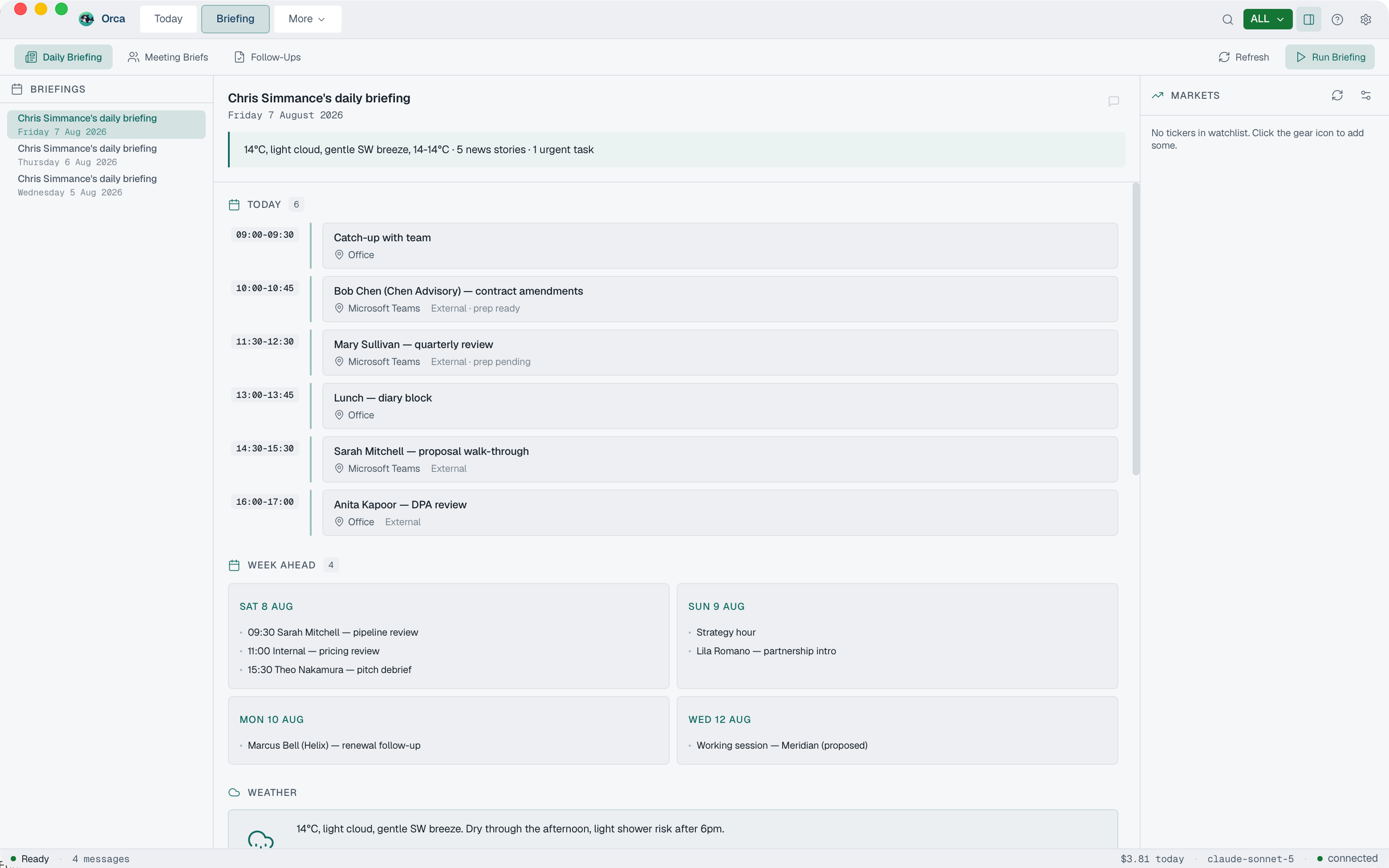
The pictures below are drawings of what each step asks for, apart from step 5, which is the real Briefing tab.
-
2
Enter your licence key
Paste the key from your welcome email into the first screen and continue. Orca checks it, then collects everything we set up for you: the connection to your own database and your Claude key. There is nothing else to paste, and no Anthropic account to open.
The key activates Orca on your computer. Orca Mobile signs in with the same key without using up a computer activation.
-
3
Sign into your mailbox
Choose Microsoft 365 or Google and sign in through their own window. Orca never sees or stores your password. You can connect up to five mailboxes, in any mix, and add more later in Settings > Accounts.
If Microsoft says the app needs an administrator’s approval, see Microsoft 365. For Google, see Google.
-
4
Tell Orca about you
The context builder is what makes every brief and draft sound like you. It works through six short parts:
- you and your company;
- what the web says about you, where you tick what is right (optional);
- how you write, read from your recent sent mail, plus anything you paste in;
- your rules, the things never to say, and your sign-off (optional);
- the people and priorities that matter most (optional);
- build and preview, where you see how Orca will sound before you save.
You can rebuild it at any time in Settings > Voice and context.
-
5
Your first brief
Open the Briefing tab and press Run Briefing. Orca pulls your day together: today’s meetings and who they are with, the week ahead, the weather and what needs you. After today, a fresh brief is waiting each morning.

Installing on a Mac
- Download Orca for Mac from the list above. It arrives as
Orca-latest.dmgin your Downloads folder. - Double-click the file to open it, then drag Orca into the Applications folder in the window that appears.
- Eject the disk image (the drive called Orca in the Finder sidebar), then open Orca from Applications or Launchpad.
- The first time you open it, macOS asks whether you are sure you want to open an app downloaded from the internet. Click Open. Orca is signed and notarised by Apple, so this is the standard first-open check and it only asks once.
If a feature later needs access to your files or another permission, the wizard asks at that step and shows you where to switch it on in System Settings > Privacy & Security. Nothing is needed up front, and there is nothing to type into Terminal.
Installing on Windows
Orca is new, so Windows has not yet built up a reputation for it and asks you to confirm the download twice. Nothing is wrong with the file. This is what appears and what to press.
- Download Orca for Windows from the list above. If your browser holds the download as not commonly downloaded, open the menu next to the download (the small arrow or … beside it) and choose Keep, then confirm Keep again.
- Run
Orca-latest.exe. If a blue window says Windows protected your PC with only a Don’t run button, click More info, the small link in the message. This is the step people miss. - A Run anyway button appears. Click it and the installer runs as normal.
- Open Orca from the Start menu. The wizard starts on the first open.
Please do not turn off SmartScreen or your antivirus. The steps above are all you need, for this one file. The download comes over HTTPS from our own domain, and every update is checked by the app before it installs.
Orca Mobile on Android
Orca Mobile installs from mob.simmance.ai rather than the Play Store. It shows the drafts and decisions your Orca has prepared, ready to approve on the move.
- On your phone, open this page or your welcome email and tap Get the Android app. The file downloads to your phone.
- Open the downloaded file. If Android says your browser is not allowed to install unknown apps, tap Settings, switch on Allow from this source, then go back and tap Install.
- Open Orca Mobile and enter the same licence key. It does not use up a computer activation, and it keeps working for 72 hours if the phone is offline.
The app updates itself from the same place, so you only do this once.
Microsoft 365: if your organisation blocks the sign-in
Many organisations only let apps reach a mailbox once an administrator has approved them. If yours does, the Microsoft sign-in window shows Need admin approval or Approval required instead of letting you continue. Nothing is broken: Microsoft is asking the person who looks after your Microsoft 365 account to say yes once, for your organisation.
In a small business that person is usually the owner, the office manager or your outside IT provider. If you are not sure, it is whoever adds new staff to email. Send them the note below.
Microsoft 365: working while your computer is off
Orca does much of its work in its own cloud, so the triage, drafts, briefs and follow-ups carry on while your laptop is closed. For Microsoft 365 mailboxes, that needs one more approval from your administrator, for three permissions:
| Microsoft’s name | What it means for you |
|---|---|
| Mail.ReadWrite | Orca can read your mail, put drafts in the right thread, and move, snooze or schedule messages for you. |
| Mail.Send | Orca can send messages you have approved or scheduled, even while your computer is closed. |
| Calendars.Read | Orca can see your diary to prepare for meetings and offer free times. It cannot change your calendar. |
Email chris@simmance.ai with your administrator’s name and email address and we send them the approval link. Until it is done, Orca on your computer works as normal. To check, open Settings > Connections > Cloud status: two green ticks mean it is all working.
Google sign-in
- In the wizard, choose Google. Your browser opens Google’s own sign-in.
- Choose the account you want Orca to work with.
- Google lists what Orca is asking to do. Where it shows tick boxes, tick them all, so Orca can read your mail, prepare drafts and see your calendar. Then click Continue.
- Go back to Orca. The mailbox shows as connected.
If you use Google Workspace and your administrator limits which apps can connect, Google tells you the app is blocked. Forward the note above to your administrator: in the Google Admin console this is under Security > Access and data control > API controls.
What is already set up for you
- Claude, the AI that writes your briefs, drafts and summaries. Usage is included under fair use: up to 30 recorded meeting hours a month and normal daily use.
- A database of your own, in London, walled off from every other customer. Where your data lives has the detail.
- Meetings. The Orca notetaker joins your calls, takes the notes and starts the follow-up. There is no transcription service to sign up for.
- Bookings. Your booking page is live at the link in your welcome email, on cal.simmance.ai. Send it to anyone who wants time with you.
- The cloud side. Orca’s background work is switched on for you. Microsoft 365 mailboxes also need the approval above.
Orca Time and Orca Snap
Both come with your Orca licence. Nothing extra to buy.
Orca Time records which app, window and browser tab you are in, never keystrokes, screenshots or content, and files the time against your clients.
- Go to time.simmance.ai and create your account with the same email address you bought Orca with. It recognises your licence and makes you the admin.
- Download Orca Time for Mac or Windows from the list above and sign in with that account.
- On Orca for Teams, invite your colleagues from the dashboard at time.simmance.ai.
Orca Snap is a Mac screenshot and screen recording tool (macOS 14 or later).
- Download Orca Snap and sign in with your Orca Time account.
- On your first capture, macOS asks for Screen Recording permission. Grant it once.
- To record your screen into Orca, open Orca, go to Settings > Connections > Meetings, copy the pairing code, and paste it into Snap under Pair with Orca. Recordings then upload to your own Orca, nowhere else.
Where to get help
- Email. Reply to your welcome email or write to chris@simmance.ai. Say what you expected and what happened, and add a screenshot if you can.
- A walk-through. If you would rather do it together, book a slot with Chris and we will set it up on a call.
- More reading. The install page, the guide, help, and where your data lives.
Rather do it together?
Book a walk-through with the person who built Orca, and we will set it up on a call.